Commently Replies · Guide
How to use Commently Replies, step by step.
Install the Chrome extension, sign in, tell it how you reply, then draft, review and post replies to your YouTube comments. Nothing posts until you approve it.
-
Add Commently to Chrome
Add Commently Replies from the Chrome Web Store at trycommently.com/install.
Pin the Commently icon from the puzzle-piece menu in Chrome's toolbar, then click it to open the side panel next to YouTube.
TipWas YouTube already open when you installed? Reload that tab once so the panel can connect.
-
Create your account, then sign in from the panel
Create your account and pick a plan at app.trycommently.com/replies/signup.
Then click Sign in in the panel. The panel updates by itself once you are signed in.
-
Tell it your channel and how you reply
Paste your YouTube channel link, then pick how you reply: tone, emoji and sign-off.
Add notes if you like, such as what you sell and when to mention it, or topics to avoid.
The panel then lists your latest uploads, so you can open one's comments in one click.
-
Go where you already answer comments
Open YouTube Studio, then Comments for all your videos, or a single video's Comments tab. The watch page of your own video works too.
The panel counts the comments you have not answered yet.
TipIn Studio, the "Response status" filter shows only comments you have not answered. Load more in the panel, or scrolling the page, brings in more comments.
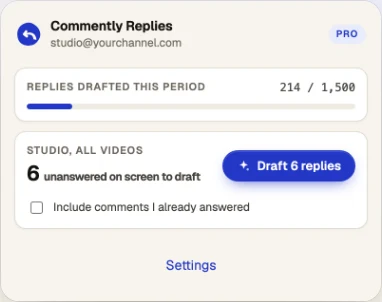
-
Click Draft, up to 25 at a time
Each reply is written from what you said in that video, in your voice.
Commently learns from the replies you already wrote and from the drafts you edit before posting, so it sounds more like you the more you use it.
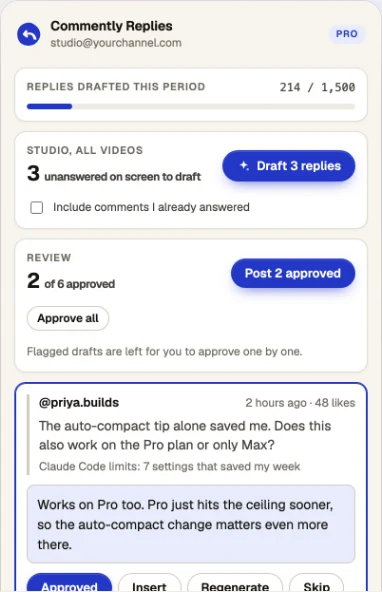
-
Edit, Regenerate, Skip or Approve
Edit any draft in place, ask for a new one with Regenerate, Skip the ones you would rather leave, and Approve the rest.
Approve all leaves flagged drafts for you to handle one by one: spam, sensitive comments, drafts it suggests skipping and weak or generic ones.
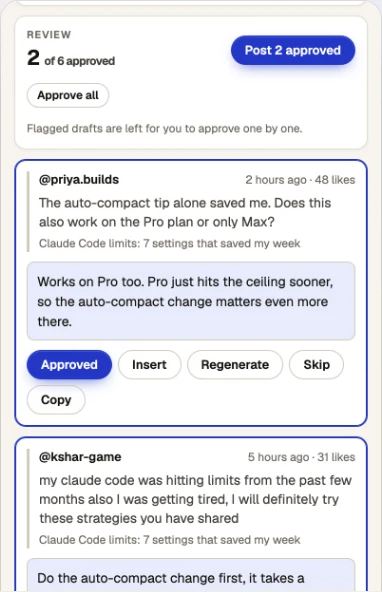
-
Post the approved replies from your own browser
Click Post N approved. Commently posts them one at a time from your own browser with a short random pause between each, at most 20 per run and 40 per hour, and stops at the first problem.
Keep the YouTube tab open and visible while it posts.
Prefer to click Reply yourself? Turn on Insert only in Settings: it fills YouTube's reply box and leaves the click to you.
TipNothing posts until you approve it. Commently never likes, deletes or hides anything.
If something looks off.
Still stuck? Email hello@trycommently.com and tell us what the panel says.
The panel says to reload the tab
The extension was added or updated while that YouTube tab was open. Reload the tab once and the panel connects.
Posting stopped partway
Posting needs the YouTube tab open, visible and on the same page. If you switched tabs, minimised the window or the page changed, it stops. Go back to the tab and click Post again for the replies still approved.
It says "Check YouTube: could not confirm"
The panel could not see the reply appear on the page. Open that comment on YouTube and check whether your reply is there before you post it again.
Posting does not work on a watch page
On a video's watch page, posting works only on a channel that is on your plan. Check that the video belongs to the channel you added.
The panel says I am signed out
Click Sign in in the panel again. It picks up your account by itself.
I am out of drafts this period
Your plan's drafts for this billing period are used up. Upgrade from Billing in your account to keep drafting, or wait for the count to reset at the start of the next period.